Password Reset Page
Overview
The Password Reset page provides a two-step password recovery flow for users who have forgotten their passwords. It handles both the password reset request (sending email) and the actual password reset (with token). The page automatically detects which step to show based on the presence of a reset token in the URL.
Route
- Path:
/password-resetor/reset-password - Authentication: Not required (public access)
- Query Parameter:
token(optional, for reset step)
Features
Two-Step Flow
The page operates in two modes:
- Request Step (default) - Request password reset email
- Reset Step (with token) - Enter new password
Step 1: Request Password Reset
- Email Input: User enters their email address
- Email Sending: Backend sends password reset email (if configured)
- Privacy Protection: Always shows success message (prevents email enumeration)
- SMTP Required: Email functionality requires SMTP configuration
Step 2: Reset Password
- Token Verification: Validates reset token from email link
- Password Input: New password field
- Confirm Password: Password confirmation field
- Validation: Password match validation
- Success Redirect: Redirects to login after successful reset
User Interface
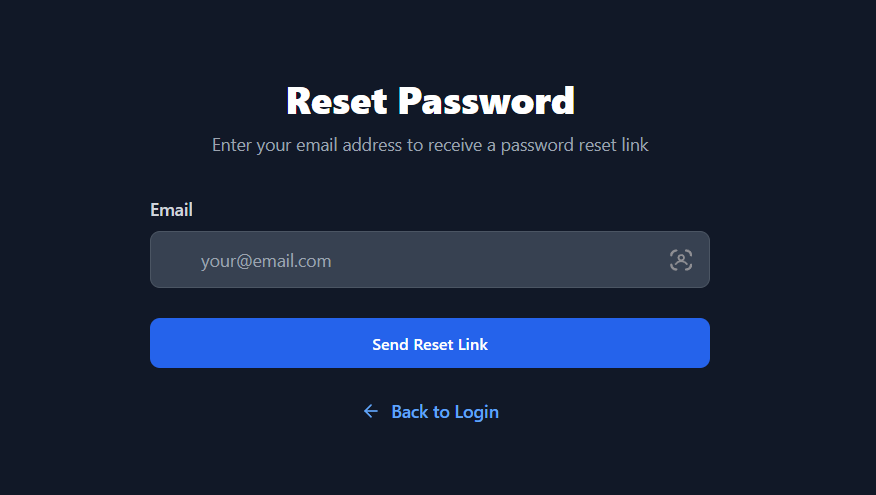
Request Step Layout
- Centered Form: Clean, centered form
- Title: "Reset Password"
- Description: Instructions for requesting reset
- Email Input: With Mail icon
- Submit Button: "Send Reset Link"
- Back to Login: Link to return to login
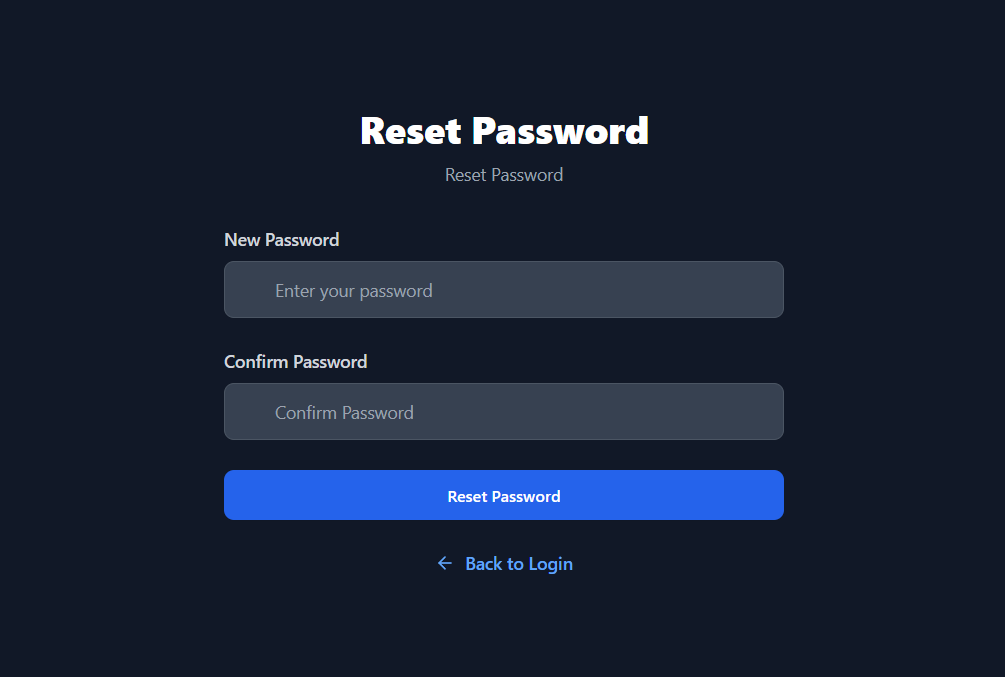
Reset Step Layout
- Centered Form: Clean, centered form
- Title: "Reset Password"
- Token Validation: Loading state while verifying token
- Password Inputs: New password and confirm password (with Key icons)
- Submit Button: "Reset Password"
- Back to Login: Link to return to login
Success/Error Messages
- Success State: Green banner with success message
- Error State: Red banner with error message
- Token Invalid: Specific message for invalid/expired tokens
- Message Persistence: Messages remain until new action
User Interactions
Requesting Password Reset
- Navigate to
/password-reset(or click "Forgot password?" on login) - Enter email address
- Click "Send Reset Link"
- Success message displayed (even if email doesn't exist - privacy)
- Check email for reset link (if SMTP configured)
- Click reset link in email
Resetting Password
- Click reset link from email (contains token parameter)
- Page loads with token
- Token is verified automatically
- If valid: Password form appears
- If invalid: Error message and link to request new reset
- Enter new password
- Confirm password (must match)
- Click "Reset Password"
- On success: Redirected to login page after 2 seconds
Component Structure
<PasswordReset>
  <Container>
    <Header>
      <Title>
      <Description>
    </Header>
    <Messages>
      {message && <Message Banner>}
    </Messages>
    {step === 'request' ? (
      <Request Form>
        <Email Input>
        <Submit Button>
        <Back Link>
      </Form>
    ) : (
      <>
        {tokenValid === null && <Loading>}
        {tokenValid === false && <Invalid Token Message>}
        {tokenValid === true && (
          <Reset Form>
            <Password Input>
            <Confirm Password Input>
            <Submit Button>
            <Back Link>
          </Form>
        )}
      </>
    )}
  </Container>
</PasswordReset>
API Integration
POST /password-reset/request- Request password reset emailGET /password-reset/verify- Verify reset token validityPOST /password-reset/reset- Reset password with token
Request Endpoint
POST /password-reset/request
- Body:
{ email } - Response: Always success (privacy protection)
- Side Effect: Sends email if user exists and SMTP configured
Verify Endpoint
GET /password-reset/verify
- Query:
?token={reset_token} - Response:
{ valid: boolean } - Purpose: Check if token is valid before showing form
Reset Endpoint
POST /password-reset/reset
- Body:
{ token, password } - Response: Success or error
- Side Effect: Updates user password, invalidates token
Security Features
Privacy Protection
- Email Enumeration Prevention: Always shows success message
- Token Security: Tokens are time-limited and single-use
- Token Validation: Tokens verified before allowing reset
- Secure Transmission: HTTPS recommended
Password Security
- Password Hashing: Passwords hashed with bcrypt
- No Plaintext Storage: Passwords never stored in plain text
- Token Expiration: Reset tokens expire after set time
- One-Time Use: Tokens invalidated after use
Validation
- Token Format: Token format validation
- Token Expiry: Server checks token expiration
- Password Match: Client and server-side validation
- Password Strength: Minimum length enforcement (if configured)
Error Handling
Request Errors
- Network Errors: Connection error handling
- Generic Success: Always shows success (privacy)
- SMTP Errors: Handled silently on backend
Reset Errors
- Invalid Token: "Invalid or expired reset token"
- Expired Token: Handled as invalid token
- Password Mismatch: "Passwords do not match"
- Network Errors: Connection error messages
- Server Errors: Generic error messages
State Management
Form State
- Email: Email input (request step)
- Password: New password input (reset step)
- Confirm Password: Password confirmation (reset step)
- Loading: Button disabled during operations
- Message: Success/error message state
- Token Valid: Token validation state (null, true, false)
Step Detection
- Token Check: Reads token from URL query parameter
- Auto-detection: Automatically shows correct step
- Token Verification: Validates token on reset step load
Token Flow
- User Requests Reset: Email submitted
- Backend Generates Token: Unique, time-limited token created
- Email Sent: Reset link with token sent to user
- User Clicks Link: Navigates to reset page with token
- Token Verified: Frontend verifies token validity
- Password Reset: User enters new password
- Token Used: Token invalidated after successful reset
SMTP Configuration
Password reset emails require SMTP configuration:
- Required: SMTP must be configured in Admin settings
- Email Content: Reset link with token included
- Email Format: HTML or plain text
- From Address: Configured in SMTP settings
SMTP Setup
- Navigate to Admin → Settings
- Configure SMTP settings:
- Host, port, security
- Username, password
- From email/name
- Test email configuration
- Password reset emails will work
Styling
- Clean Design: Simple, focused interface
- Dark Mode: Full dark/light mode support
- Responsive: Mobile-friendly layout
- Icon Support: Mail and Key icons for visual clarity
- Message Banners: Color-coded success/error messages
Related Components
Button- Styled button component- Form inputs - Standard HTML inputs with icons
Related Pages
Technical Details
- Component File:
frontend/src/pages/PasswordReset.tsx - State Management: React hooks (
useState,useEffect) - Routing: React Router (
useSearchParams,useNavigate) - API Client: Custom API client
- Token Handling: URL query parameter extraction
i18n Keys Used
passwordReset.*- All password reset stringscommon.loading- Loading state textcommon.error- Error messagesauth.passwordPlaceholder- Password input placeholder
User Experience
- Clear Flow: Obvious two-step process
- Privacy Protection: Email enumeration prevented
- Token Validation: Token checked before form shown
- Clear Messages: Specific error messages
- Auto-redirect: Seamless transition to login
- Back Navigation: Easy return to login
Accessibility
- Proper form labels
- Keyboard navigation
- Screen reader support
- Focus management
- ARIA attributes
- Icon accessibility
Edge Cases
No SMTP Configured
- Request still shows success (privacy)
- Email not actually sent
- User won't receive reset link
- Admin must configure SMTP
Expired Token
- Token verification fails
- Error message shown
- Link to request new reset
- User must request again
Invalid Token
- Token format or signature invalid
- Error message shown
- Link to request new reset
- User must request again
Multiple Reset Requests
- Multiple tokens can exist
- Only most recent token valid (depends on backend implementation)
- Old tokens become invalid on new request