Profile Page
Overview
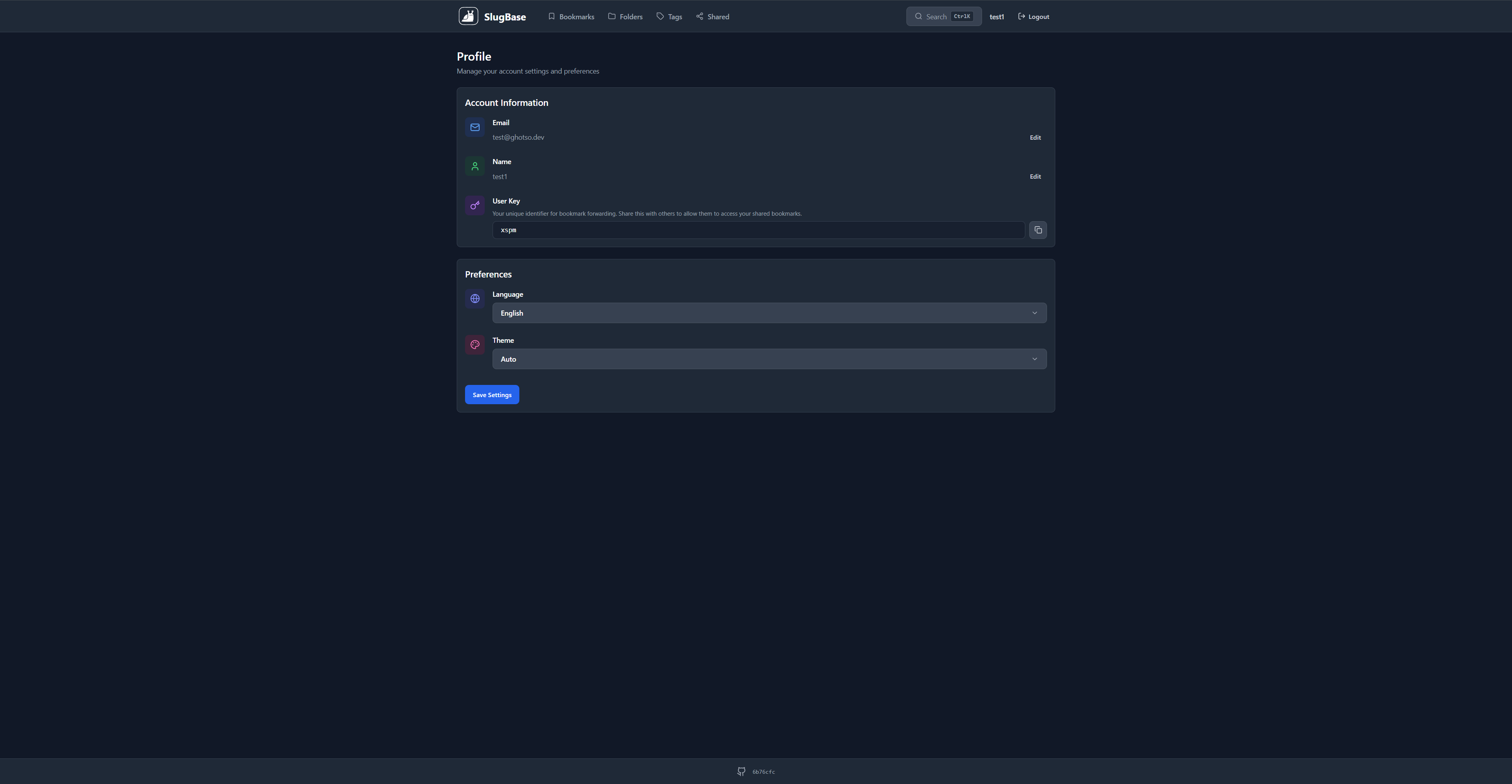
The Profile page allows users to view and manage their account settings, including email, name, user key, language preference, and theme selection. It provides an inline editing interface for quick updates.
Route
- Path:
/profile - Authentication: Required
- Access: All authenticated users
Features
User Information Management
Email
- View: Display current email address
- Edit: Click edit button to modify email
- Validation: Email format validation on save
- Inline Editing: Edit in-place without navigating away
Name
- View: Display current name
- Edit: Click edit button to modify name
- Inline Editing: Edit in-place without navigating away
User Key
- Display: Shows unique user key (read-only)
- Copy: One-click copy to clipboard
- Visual Feedback: Checkmark appears after successful copy
- Tooltip: Copy button tooltip for clarity
Settings
Language Selection
- Options: English, German, French
- Immediate Effect: Language changes apply immediately
- Persistence: Saved to user profile
- Dropdown: Select component for easy selection
Theme Selection
- Options: Auto, Light, Dark
- Auto Mode: Follows system/browser preference
- Manual Override: Force light or dark mode
- Persistence: Saved to user profile
- Immediate Effect: Theme changes apply immediately
AI Suggestions
- Toggle: Enable or disable AI suggestions when creating bookmarks
- Visibility: Only shown when AI is configured by admin
- Persistence: Saved to user profile
- Effect: When disabled, no AI suggestions appear in the bookmark creation modal
Form Structure
The profile is organized into sections:
-
Email Section (Blue icon)
- View/edit toggle
- Inline editing form
- Error handling
-
Name Section (Green icon)
- View/edit toggle
- Inline editing form
- Error handling
-
User Key Section (Purple icon)
- Read-only display
- Copy functionality
- Visual feedback
-
Language Section (Indigo icon)
- Dropdown selection
- Save with other settings
-
Theme Section (Pink icon)
- Dropdown selection
- Save with other settings
-
AI Suggestions Section (Violet icon, when AI configured)
- Toggle switch
- Save with other settings
User Interactions
Editing Email
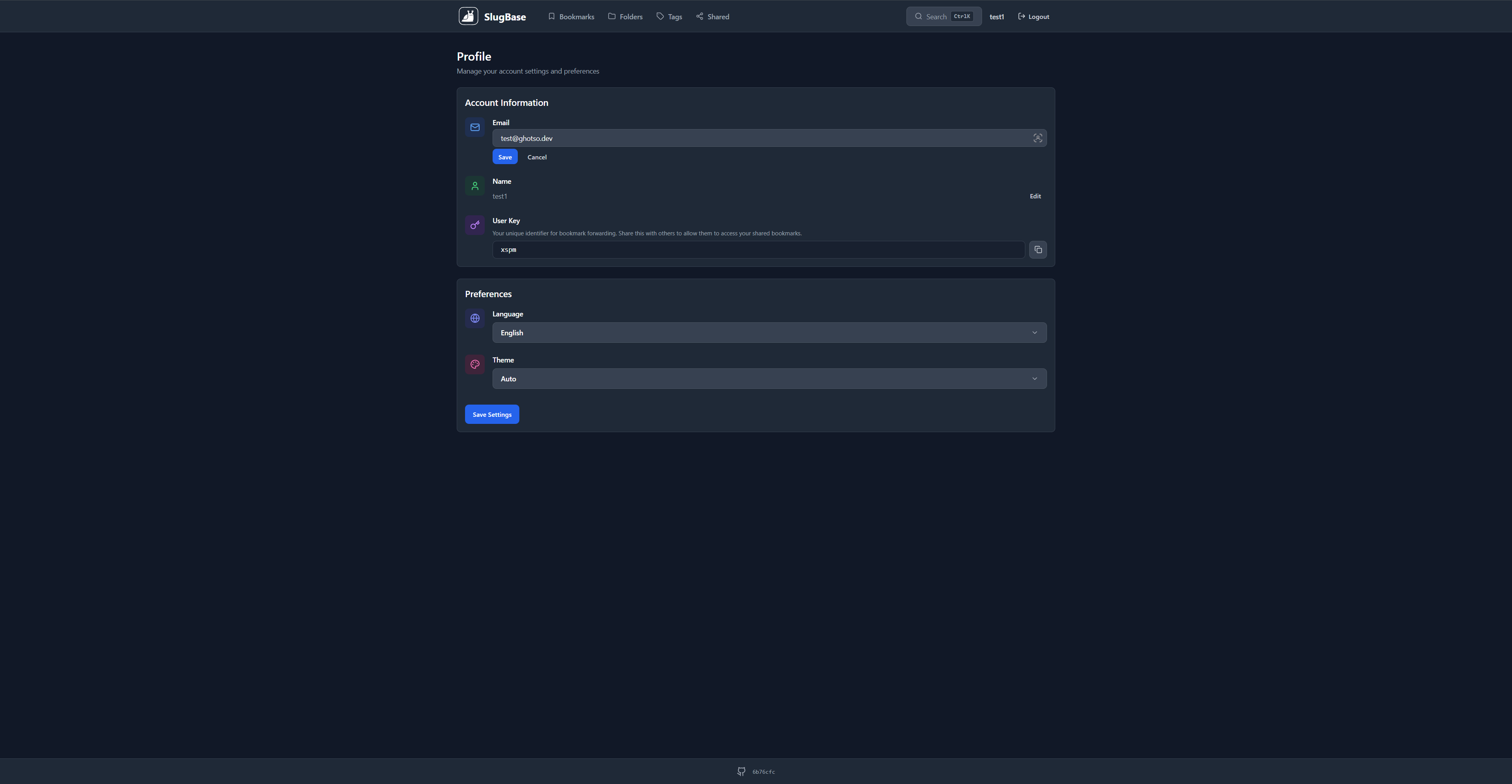
- Click "Edit" button next to email
- Input field appears inline
- Modify email address
- Click "Save" or "Cancel"
- Error message appears if validation fails
Editing Name
- Click "Edit" button next to name
- Input field appears inline
- Modify name
- Click "Save" or "Cancel"
- Error message appears if validation fails
Copying User Key
- Click copy button next to user key
- User key is copied to clipboard
- Checkmark icon appears temporarily
- Toast notification may appear (depending on implementation)
Changing Language
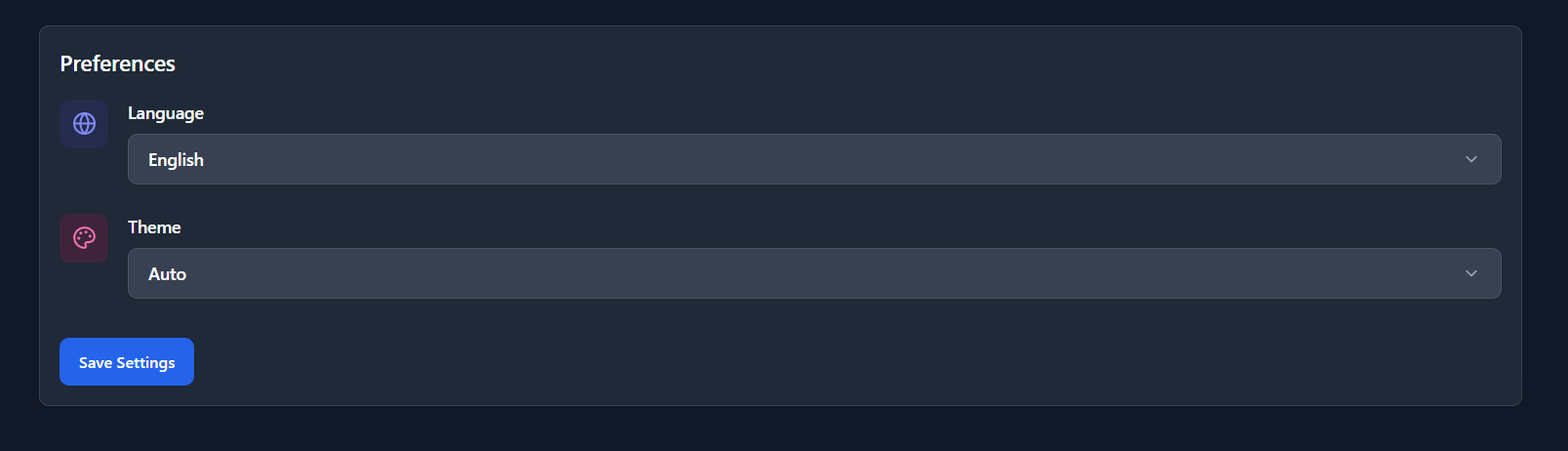
- Select language from dropdown
- Optionally change other settings
- Click "Save Settings" button
- Language changes immediately
Changing Theme
- Select theme from dropdown
- Optionally change other settings
- Click "Save Settings" button
- Theme changes immediately
Toggling AI Suggestions
- When AI is configured by admin, the AI Suggestions toggle appears in Preferences
- Toggle on or off
- Click "Save Settings" button
- AI suggestions will or will not appear when creating bookmarks accordingly
Component Structure
<Profile>
  <Header>
    <Title>
    <Description>
  </Header>
  <Profile Card>
    <Email Section>
      <View Mode> | <Edit Mode>
    </Email>
    <Name Section>
      <View Mode> | <Edit Mode>
    </Name>
    <User Key Section>
      <Display>
      <Copy Button>
    </User Key>
    <Settings Form>
      <Language Select>
      <Theme Select>
      <AI Suggestions Toggle> (when AI configured)
      <Save Button>
    </Settings>
  </Card>
</Profile>
API Integration
GET /users/me- Fetch current user data (via AuthContext)PUT /users/me- Update user profile- Updates include:
email,name,language,theme,ai_suggestions_enabled
Form State Management
Editing States
editingEmail: Boolean toggles email edit modeeditingName: Boolean toggles name edit modeformData: Contains all form valueserrors: Object containing field-specific error messages
Save Behavior
- Email and name can be saved individually (inline editing)
- Language and theme are saved together via form submit
- All changes trigger API calls
- Success/error handling for each operation
Error Handling
Email Errors
- Email format validation
- Duplicate email detection
- Server-side validation errors
- Displayed inline below input field
Name Errors
- Required field validation
- Server-side validation errors
- Displayed inline below input field
General Errors
- API error handling
- Network error handling
- User-friendly error messages
Styling
- Section Icons: Color-coded icons for each section
- Inline Editing: Smooth transitions between view/edit modes
- Form Layout: Clean, organized sections with proper spacing
- Dark/Light Mode: Full theme support
- Responsive: Works on all screen sizes
Related Components
Select- Dropdown component for language/themeButton- Action buttons throughoutAuthContext- Provides user data and update function
Related Pages
Technical Details
- Component File:
frontend/src/pages/Profile.tsx - State Management: React hooks (
useState,useEffect) - API Integration: Via AuthContext
updateUserfunction - Clipboard API: Native
navigator.clipboard.writeText - Form Handling: Controlled components with React state
i18n Keys Used
profile.*- All profile-related stringscommon.*- Common UI strings (save, cancel, edit, etc.)bookmarks.copied- Copy success messagebookmarks.copyUrl- Copy button tooltip
Internationalization
The Profile page is fully internationalized:
- All UI text uses i18n keys
- Language selection changes interface language
- Language options themselves are translated
Theme Management
Theme selection affects:
- Immediate visual changes
- Persistence across sessions
- Application-wide theme state
- CSS variable updates
Performance Considerations
- Inline editing reduces page navigation
- Efficient re-renders with controlled components
- User data cached in AuthContext
- Optimistic UI updates where possible
Security Notes
- User key is read-only (cannot be changed)
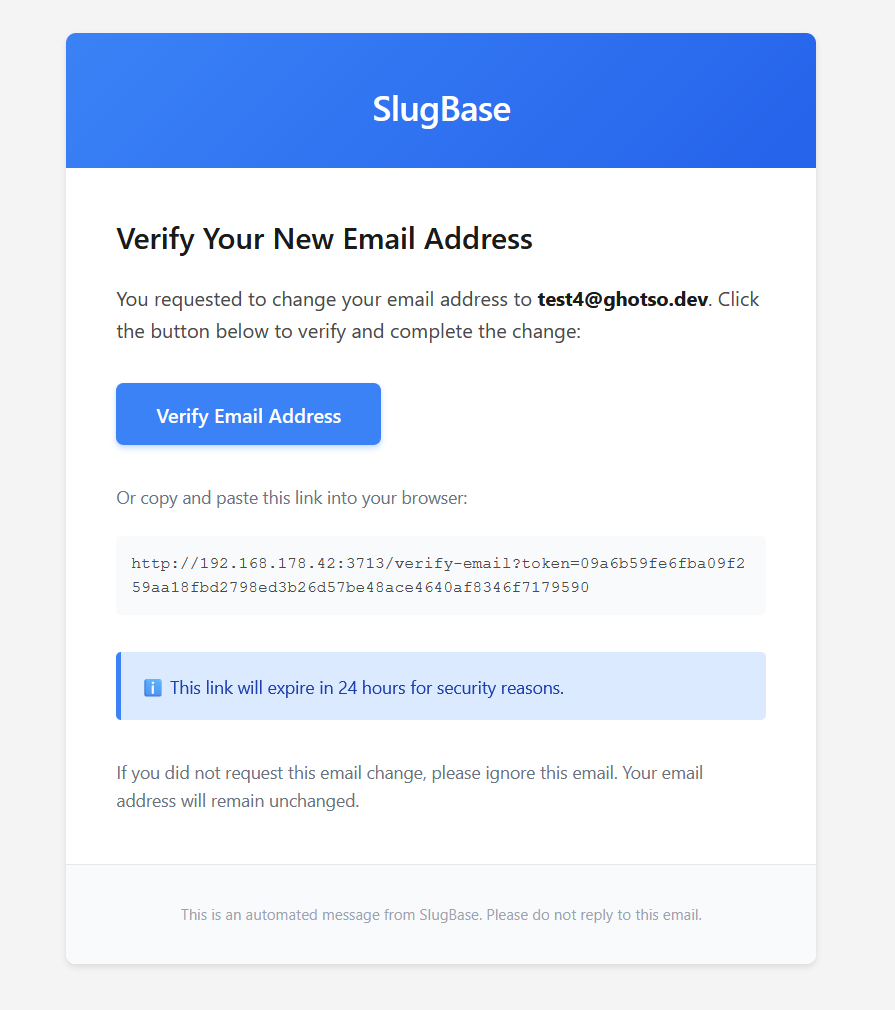
- Email changes may require verification (depending on backend)
- Password changes handled on separate Password Reset page
- All updates require authentication
User Experience Enhancements
- Inline Editing: Quick edits without page reload
- Visual Feedback: Copy confirmation, edit mode indicators
- Error Handling: Clear error messages near relevant fields
- Cancel Option: Easy way to discard changes
- Sectioned Layout: Organized information hierarchy
- Color Coding: Icons help identify sections quickly