Shared Page
Overview
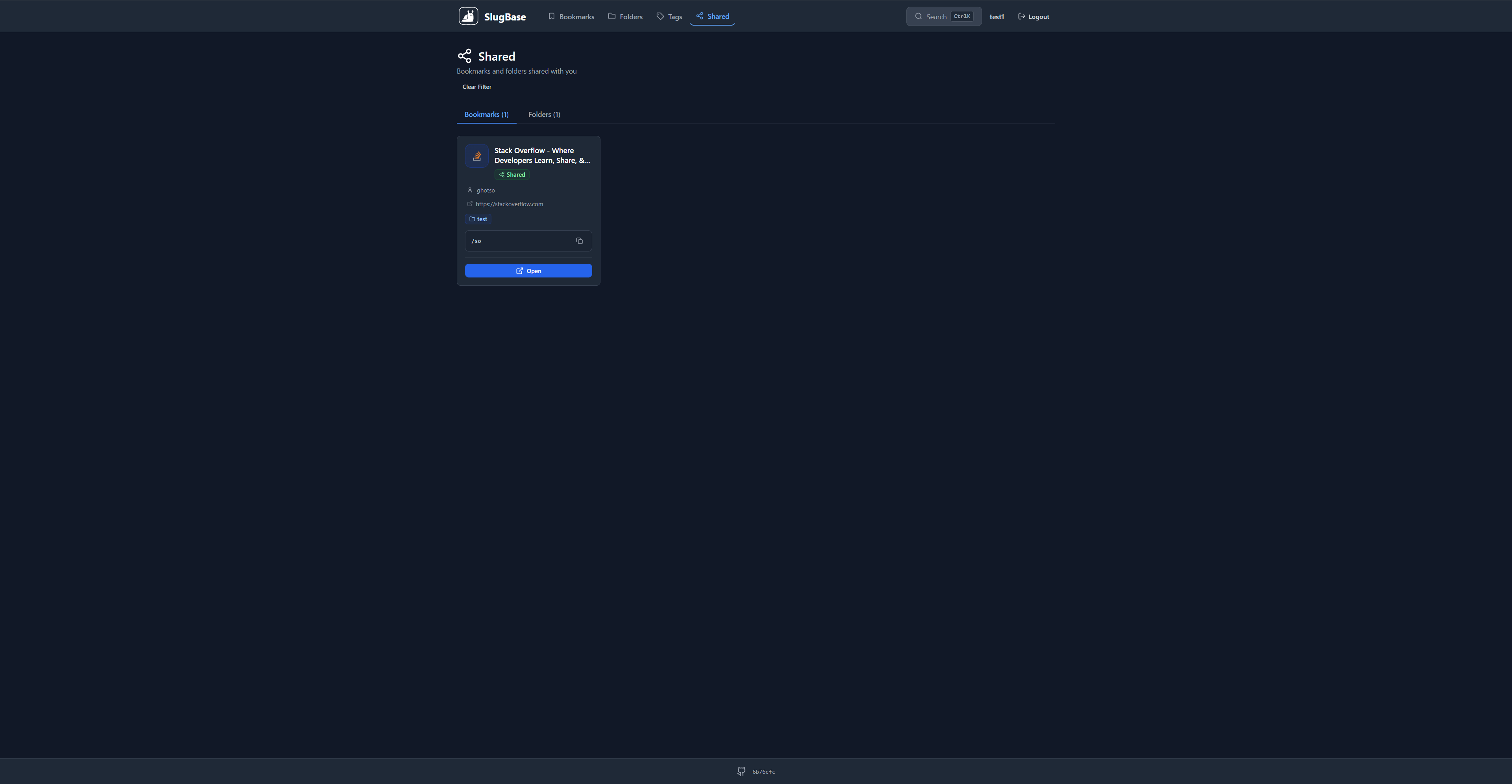
The Shared page displays bookmarks and folders that have been shared with the current user by other users or teams. It provides a separate view for accessing shared content, distinguishing it from the user's own content.
Route
- Path:
/shared - Authentication: Required
- Access: All authenticated users
Features
Tabbed Interface
The page uses a tabbed interface with two sections:
- Bookmarks Tab - Shows shared bookmarks
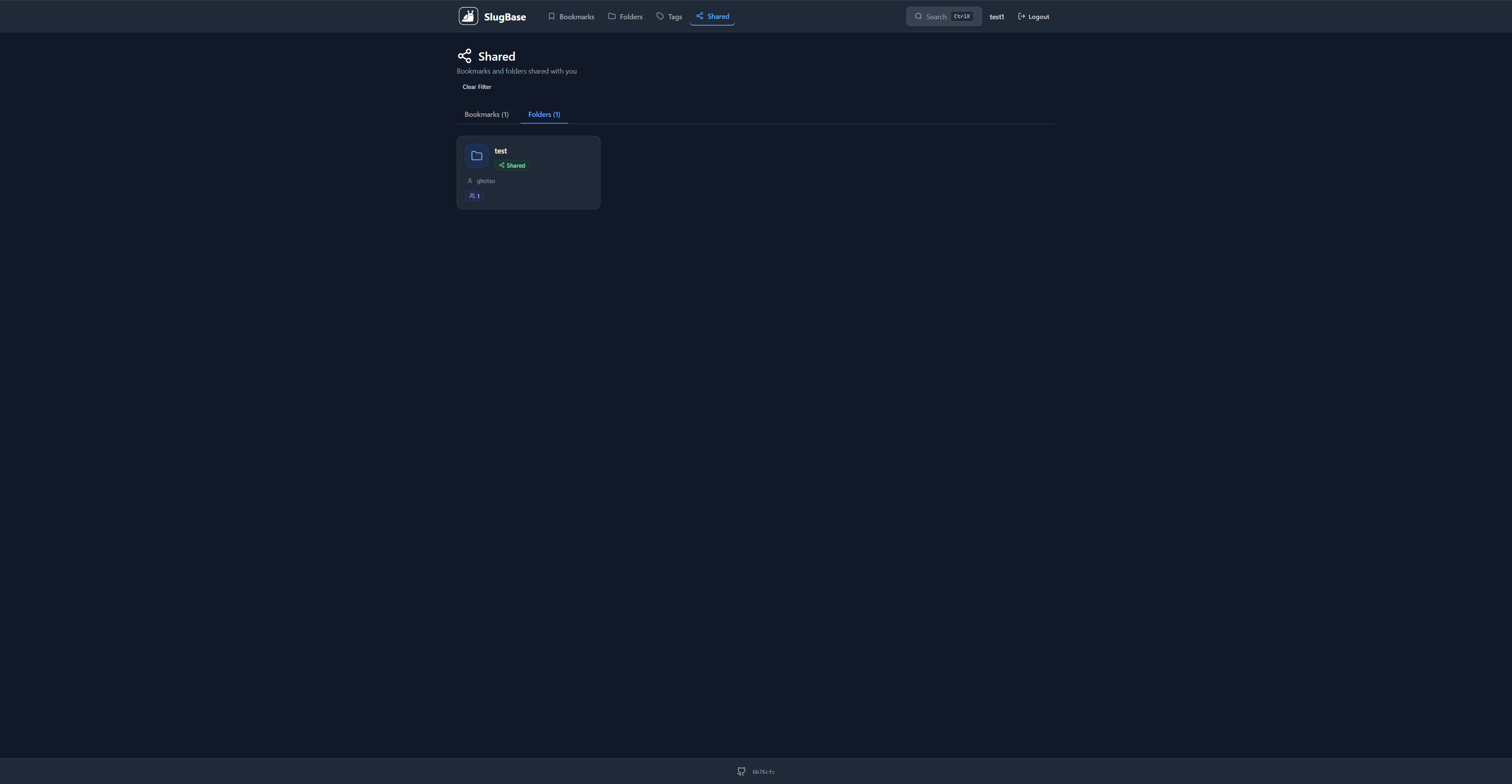
- Folders Tab - Shows shared folders

Shared Bookmarks
Displays bookmarks shared with the user that are:
- Owned by other users
- Shared through teams the user is a member of
- Shared directly with the user
Bookmark Cards Display:
-
Header Section
- Favicon (fetched from URL)
- Bookmark title
- "Shared" badge (always shown)
-
Shared By Information
- User icon
- Owner name or email (or "Unknown User" if unavailable). In CLOUD mode, owner email is not shown; only the owner name or "Shared with you" is displayed.
-
URL Display
- Truncated URL with external link icon
-
Metadata Tags
- Folder badges (up to 2 shown)
- Tag badges (up to 2 shown)
-
Forwarding URL (if enabled)
- Displays the canonical URL format:
/go/{slug} - Copy button copies the full forwarding URL
- Displays the canonical URL format:
-
Actions
- Open Button: Opens bookmark URL in new tab
- Edit/Delete buttons are NOT shown (shared bookmarks are read-only)
Shared Folders
Displays folders shared with the user that are:
- Owned by other users
- Shared through teams the user is a member of
- Shared directly with the user
Folder Cards Display:
-
Header Section
- Folder icon
- Folder name
- "Shared" badge (always shown)
-
Shared By Information
- User icon
- Owner name or email (or "Unknown User" if unavailable). In CLOUD mode, owner email is not shown.
-
Sharing Indicators
- Team count badge (if shared via teams)
- User count badge (if shared with individual users)
User Interactions
Viewing Shared Content
- Navigate to the Shared page
- Toggle between Bookmarks and Folders tabs
- View shared items (read-only access)
Opening Shared Bookmarks
- Click the "Open" button on a bookmark card
- Bookmark opens in a new tab
- Original URL is accessed (not forwarded through SlugBase)
Copying Forwarding URLs
- If a shared bookmark has forwarding enabled, click the copy icon
- The canonical forwarding URL is copied:
https://<your-domain>/go/<slug>. The same link works for you and anyone the bookmark is shared with (login required). - Toast notification confirms copy
Filtering
- Shared content is automatically filtered to show only items not owned by the current user
- No additional filtering options (by design, this is a dedicated "shared" view)
Empty State
When no shared content exists:
Bookmarks Tab:
- Displays share icon
- Shows "No shared bookmarks yet" message
Folders Tab:
- Displays share icon
- Shows "No shared folders yet" message
Component Structure
<Shared>
  <Header>
    <Title>
    <Description>
  </Header>
  <Tabs>
    <Bookmarks Tab>
    <Folders Tab>
  </Tabs>
  <Content>
    {activeTab === 'bookmarks' ? (
      <Bookmarks Grid>
        <Shared Bookmark Card>
      </Grid>
    ) : (
      <Folders Grid>
        <Shared Folder Card>
      </Grid>
    )}
  </Content>
</Shared>
API Integration
GET /bookmarks- Fetches all bookmarks (frontend filters to shared ones)GET /folders- Fetches all folders (frontend filters to shared ones)
Note: The filtering logic happens on the frontend. The API returns all accessible bookmarks/folders, and the component filters based on user_id to show only items not owned by the current user.
Sharing Mechanism
How Content Becomes Shared
-
Bookmark Sharing:
- Owner selects teams/users when creating/editing bookmark
- Selected users/teams get access to the bookmark
-
Folder Sharing:
- Owner selects teams/users when creating/editing folder
- Selected users/teams get access to the folder and its bookmarks
Access Control
- Shared content is read-only for non-owners
- Users can view but cannot edit or delete shared items
- Only the owner can modify shared content
Card Design
- Same modern design as Bookmarks and Folders pages
- Consistent styling for visual coherence
- "Shared" badges clearly indicate shared status
- Owner information provides context
- Read-only indicators (no edit/delete buttons)
Related Components
Favicon- Displays bookmark faviconsFolderIcon- Displays folder icons
Related Pages
Technical Details
- Component File:
frontend/src/pages/Shared.tsx - State Management: React hooks (
useState,useEffect) - Filtering Logic: Client-side filtering by
user_id - Tab Management: Local state with
useState - API Client: Custom API client with interceptors
i18n Keys Used
shared.*- All shared page stringsbookmarks.*- Bookmark-related stringsfolders.*- Folder-related stringscommon.*- Common UI strings
Performance Considerations
- Content is filtered on the frontend (all accessible items are fetched)
- Efficient re-renders when switching tabs
- Lazy loading of favicons
- Grid layout optimizes for different screen sizes
User Experience Notes
- Clear Distinction: The Shared page clearly separates shared content from owned content
- Read-Only Access: No edit/delete buttons prevent accidental modifications
- Owner Context: Shows who shared the content for better context
- Tab Navigation: Easy switching between bookmarks and folders
- Consistent Design: Same card design as other pages for familiarity